Xumo Stream Box brings your favorite live TV, streaming apps, and personalized recommendations together into one seamless experience. This guide walks you through the 3-step setup - installation, activation, and a home screen tour - to get you up and running with ease.
What you’ll learn:
- The Basics: An overview of what Xumo Stream Box offers, including free channels and "My List."
- Hardware Setup: How to physically connect the device to your TV and power source.
- Activation: Steps to pair your remote and link your Xumo account or TV provider.
- Navigation: A tour of the home screen rows, apps, and the live TV guide.
- Troubleshooting: Quick solutions for unresponsive devices, remote pairing, and TV control.
¿Qué es un decodificador de Xumo Stream?
Xumo Stream Box es un equipo de streaming que se conecta a cualquier televisor para que puedas acceder a todos tus servicios de streaming. All the apps are ready to use without downloading, making it simple and fast to watch your favorites. Search for shows across apps using just your voice.
Con la función Mi lista, puedes guardar tus aplicaciones favoritas en un solo lugar, e incluso crear listas diferentes para los miembros de tu familia. Plus, enjoy 300+ free channels with Xumo Play, our streaming service.
Set up your Xumo Stream Box
Set up your Xumo Stream Box and pair your remote to start streaming.
Before you start
Ensure you have:
- A working internet connection with WiFi enabled (or an Ethernet cable for a wired connection).
- Your WiFi network name and password.
- A separate device with an internet browser for activation and, if applicable, Xumo account registration.
- The make and model of your TV and external speaker system (if applicable).
Step 1: Connect to your TV
- Connect the HDMI cable to your Xumo Stream Box and TV.
- Plug the power supply into an electrical outlet. (Note: Only use the supplied power adapter; avoid outlets controlled by dimmers).
- Turn on your TV and select the correct HDMI source/Input.
Step 2: Activate and pair
Follow the on-screen instructions to pair your remote and activate your device. With seamless activation, you can quickly link your Xumo account or TV provider using the on-screen prompts.
- Safety note: Xumo will never charge you a fee to activate your device. Avoid fraudulent websites or technical support scams.
Provider-specific instructions
-
Spectrum: When prompted, select Spectrum to link your Xumo account, then use your Spectrum credentials to complete setup.
- Xfinity: If prompted, select Xfinity as your TV provider to access your live TV and favorite content.
- Mediacom: When prompted, select Mediacom. Then scan the QR code or visit xumo.com/activate and enter the unique 6-digit code displayed on your TV to link your account.
- Use without a TV provider: Select Do it myself to continue with activation. Then, scan the QR code or visit xumo.com/activate and enter the unique 6-digit code displayed on your TV to link your account.
Troubleshoot common setup issues
If your Xumo Stream Box is unresponsive:
- Try resetting it by unplugging the power supply and plugging it back in.
- Ensure both ends of the HDMI cable are secure.
- Try a different HDMI port on your TV.
- Press the Power button to wake the device.
If your remote is unresponsive:
- Check batteries: If no red or green light appears at the top when pressing buttons, replace the batteries.
- Line of sight: Ensure you are within three feet of the device with a clear line of sight.
- Re-pair: Press and hold the 1 and 3 buttons for three seconds until the light at the top flashes green.
Pairing the remote to TV/speakers:
If you cannot control volume or power, go to Settings > Connected devices > Remote. Select Control your TV or Control a speaker system and follow the prompts to enter your device brand and model number.
Get to know your home screen
Once activation is complete, you can navigate your home screen using these rows:
Recomendaciones
The Currently playing tile features live content from your TV provider or Xumo Play. Navigate left to see recently watched apps, or right for curated recommendations based on your watch history.
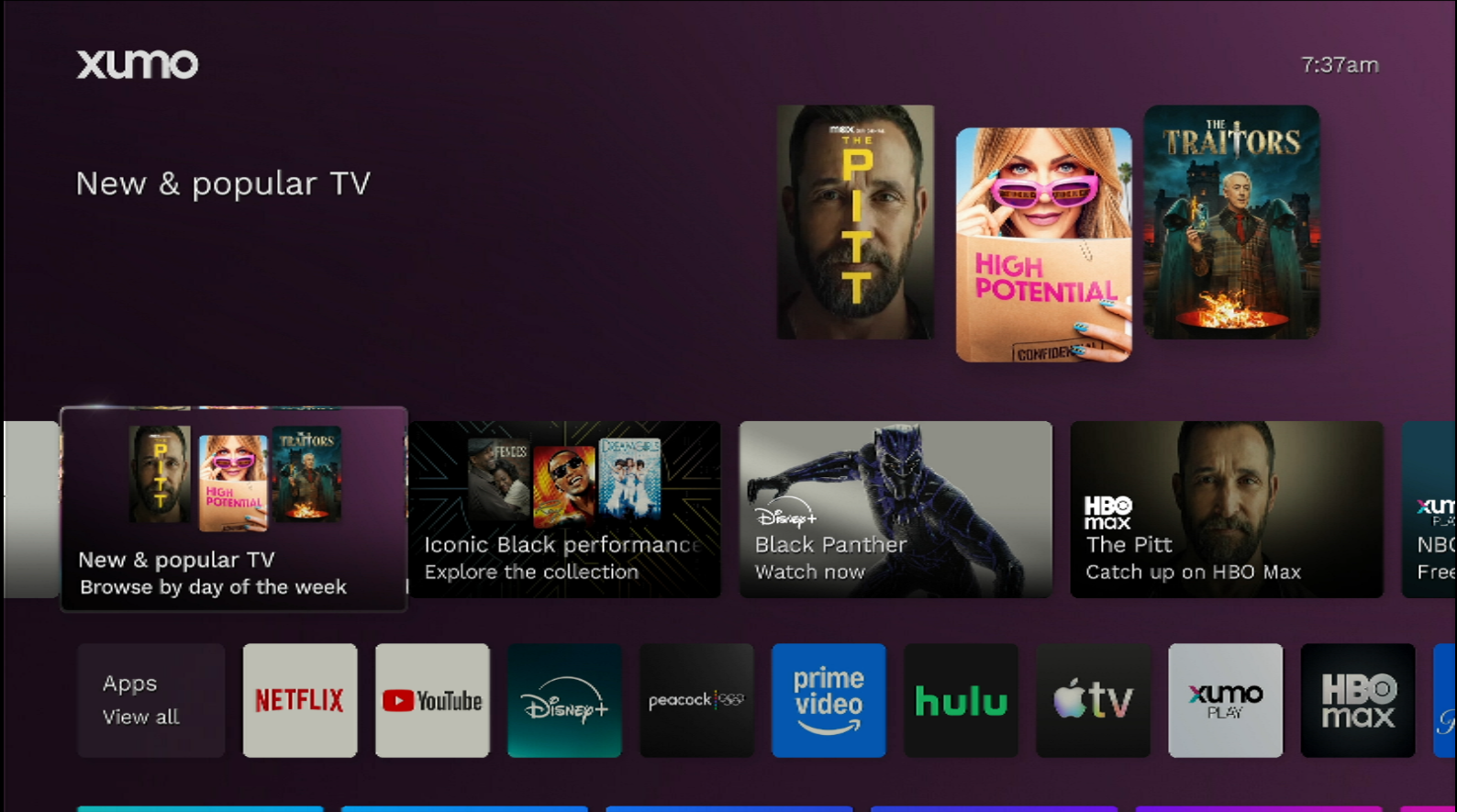
Apps
Access 250+ available apps. Select View all or navigate right to quickly launch your top 15 apps.
Mi lista
Your personalized watchlist. To add content, press the Add (+) button when browsing specific titles.
Browse by category
Scroll right from My List to explore specific categories including TV shows, Movies, Sports and Music. Here, you can explore recommendations, exciting new releases and more, compiled from across apps.
Discovery and Live TV
View curated collections like the Top 20, or access your Live TV Guide (supported for Xumo Play, Spectrum TV, and Xfinity Stream).
Settings, Search and My subscriptions
In the last row of your home screen, you’ll find Settings, Search and My subscriptions. Explore Settings to customize your Xumo Stream Box experience. Use Search to find something new to watch. View and manage your subscriptions with My subscriptions. You can also access each of these areas with voice commands.
Take a tour of your home screen
Take a tour of your home screen: